
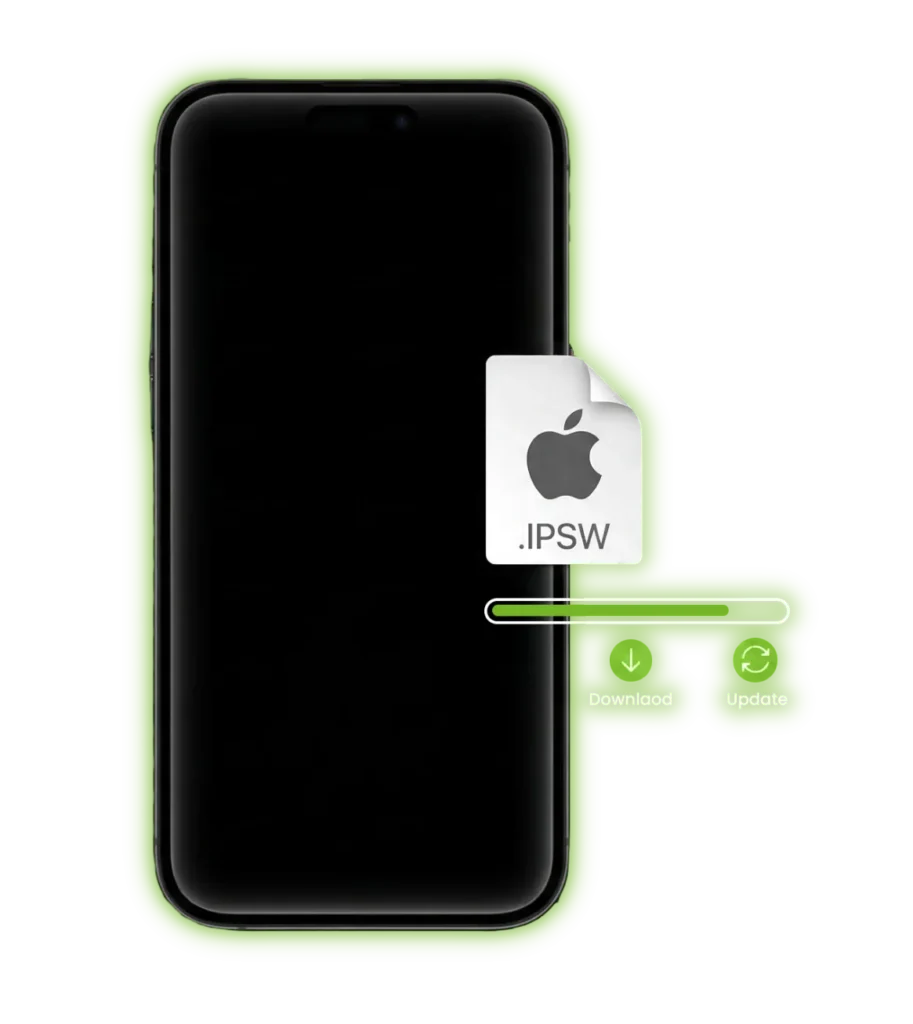
Firmware Downloads
Download IPSW Firmware
Recently Released Firmware
Check out the newest firmware updates to keep the device run with the latest software versions.



All Products
Install IPSW Firmware the Easy Way
A simple guide designed to help you install firmware manually while keeping your data secure and process smooth.
Step 3
Disable Find My Feature
Step 4
Apply the IPSW File
Step 5
Recover Your Data
Step 1
Secure your data
Create a complete backup using iCloud or a computer before starting, so your files, apps, and personal data remain fully protected.You can follow the official Apple backup guide here.
Step 2
Link Your Device Properly
Frequently Asked Questions
How does IPSW work and what exactly is it?
IPSW Downloads are firmware files used to install or update iOS on Apple devices. Instead of updating directly from settings, you can use this file through a computer to manually update or restore your device when needed.
Is data safe when updating iOS or does it get erased?
Normally, updating does not remove your data. Still, things can go wrong sometimes. It’s always better to create a backup first so nothing important is lost.
What occurs if an incorrect IPSW file is selected?
Can I install iOS manually using IPSW?
Do I need a computer to use IPSW files?
When is it possible to downgrade iOS using IPSW?
What does RC mean in iOS versions?
IPSW has supported iOS users from the beginning by providing reliable firmware downloads, update guidance, and practical troubleshooting help. As its audience grows worldwide, more users depend on it for clear and easy-to-follow solutions. The platform focuses on simplifying complex processes and sharing accurate, updated information so users can manage their devices with confidence.